Store setup & domains
Set up the store
Section titled “Set up the store”- Select/create the store during onboarding and confirm name, subdomain and currency before pricing products.
- Open Appearance to choose the theme and review storefront content.
- Open Settings → Domains to add a domain when available. Copy only the DNS records shown for that store; verify the domain and HTTPS before launch.
- Open a product and checkout at desktop/mobile widths. If a domain stays pending, check the exact DNS target and allow propagation; do not bypass browser certificate warnings.
For Business, verify local legal details; Individual must use its own approved personal/payment profile. A domain is not payment or buyer-market activation.
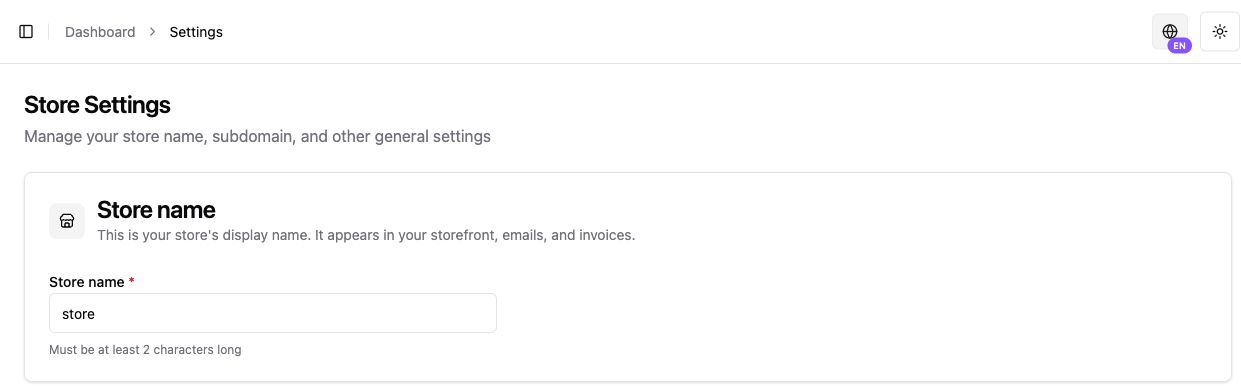
A store can start on a Kordiva subdomain and move to a custom domain later. The important part is getting business details, currency, and store identity correct before the first sale.
Core settings
Section titled “Core settings”When creating a store, set:
- store name;
- unique subdomain;
- MKD, USD, or EUR currency;
- short description;
- starting theme.
Confirm the store currency before building a large catalog. If you change it later, re-check product prices and checkout.
Legal information
Section titled “Legal information”Verify the organization and store legal details. They can be used in payments, invoices, and other business documents.
Kordiva subdomain
Section titled “Kordiva subdomain”A subdomain is the fastest way to launch without DNS configuration.
Example: mybrand.kordiva.com
Use it for setup, testing, and live selling when a custom domain is not required.
Custom domain
Section titled “Custom domain”When supported by the plan:
- Add the domain in Kordiva — Enter the address that should become the main storefront URL.
- Configure DNS — Copy the records exactly as shown in the dashboard.
- Wait for verification — DNS changes are not always immediate.
- Verify HTTPS — Do not launch a custom domain while the browser shows a security warning.
Pre-launch check
Section titled “Pre-launch check”Test:
- home page;
- category;
- product;
- cart;
- checkout;
- mobile layout;
- Macedonian and English versions if enabled;
- SEO and canonical URL after a domain change.