Dashboard guide
Use the dashboard to manage your store, review orders and follow payment status. Select the correct store and environment before changing anything. Available tools depend on your seller model, plan and role.
Start with your seller model
Section titled “Start with your seller model”Business Commerce: your registered company or sole trader remains the seller. Business tools can include physical shipping, supported deposits and customer subscriptions.
Individual MoR: Kordiva LLC is Merchant of Record for approved one-time digital sales. You supply the product and evidence of delivery. Kordiva approves and executes customer refunds and controls recovery, reserves and bank payouts. Individual access does not enable Business shipping, UJP or buyer subscriptions.
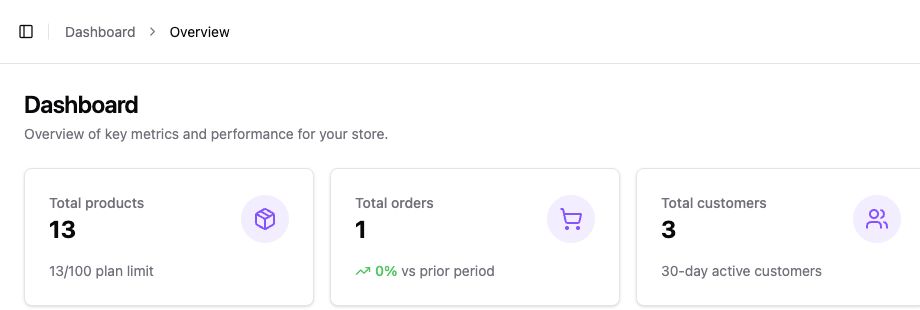
Overview
Section titled “Overview”The store overview summarizes products, orders, customers and revenue. Use it to spot activity needing attention. Revenue is a sales measure; it is not your available balance or a confirmed bank payout.
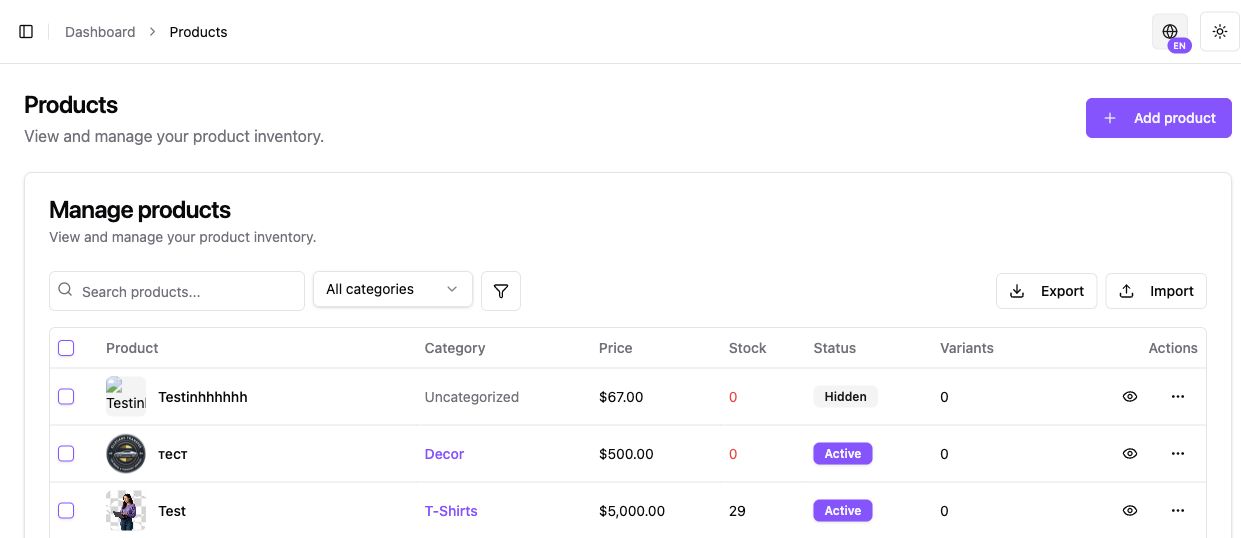
Products
Section titled “Products”Open Products → Add product to create an offer. Review its name, description, price, status, tax settings and delivery method. Business catalogs can use supported physical, digital and deposit types; Individual catalogs are digital only.
Create and organize products · Individual digital products
Orders
Section titled “Orders”Open Orders and find the order reference. Review the buyer, items, payment and delivery status separately. Business physical orders use shipment and tracking records. Individual orders do not offer seller-operated customer refunds; use the request process in Payments.
Orders and fulfillment · Individual refund requests
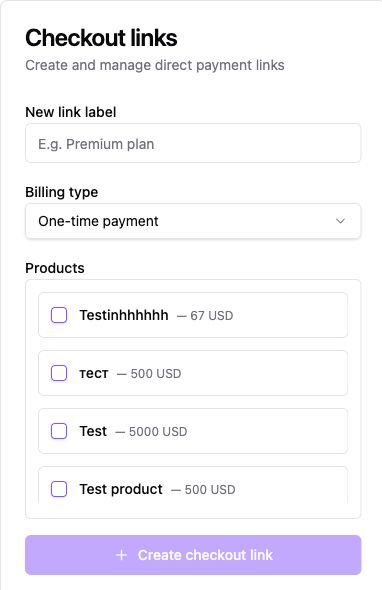
Settings → Checkout Links
Section titled “Settings → Checkout Links”Create a direct checkout URL for an existing product or offer. Review product, amount, language and environment before sharing it. Recurring links are available only for supported Business flows; Individual links are one-time digital offers.
Settings → Payments
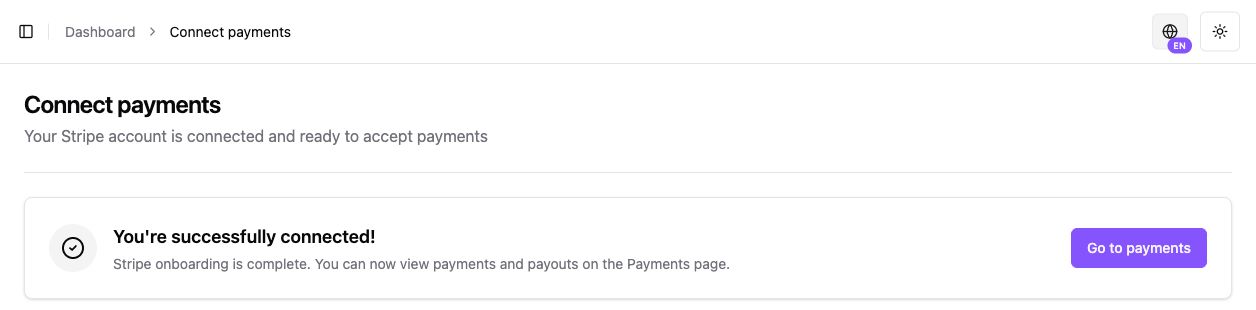
Section titled “Settings → Payments”For Individual, open the payment area to review onboarding, Individual transactions, sale details, reserves, debt and payout history. Click a transaction reference to inspect its breakdown or request a full refund for Kordiva’s review.
Business uses its own Stripe payment and payout view. Menu wording can differ by model and language. A completed connection does not, by itself, activate LIVE selling or every buyer market.
Individual money · Business payments
Analytics and contacts
Section titled “Analytics and contacts”Open Analytics to review activity for the selected period. Compare the same currency and environment. Open Settings → Contacts for storefront inquiries; an inquiry is not proof of a paid order.
Appearance and store settings
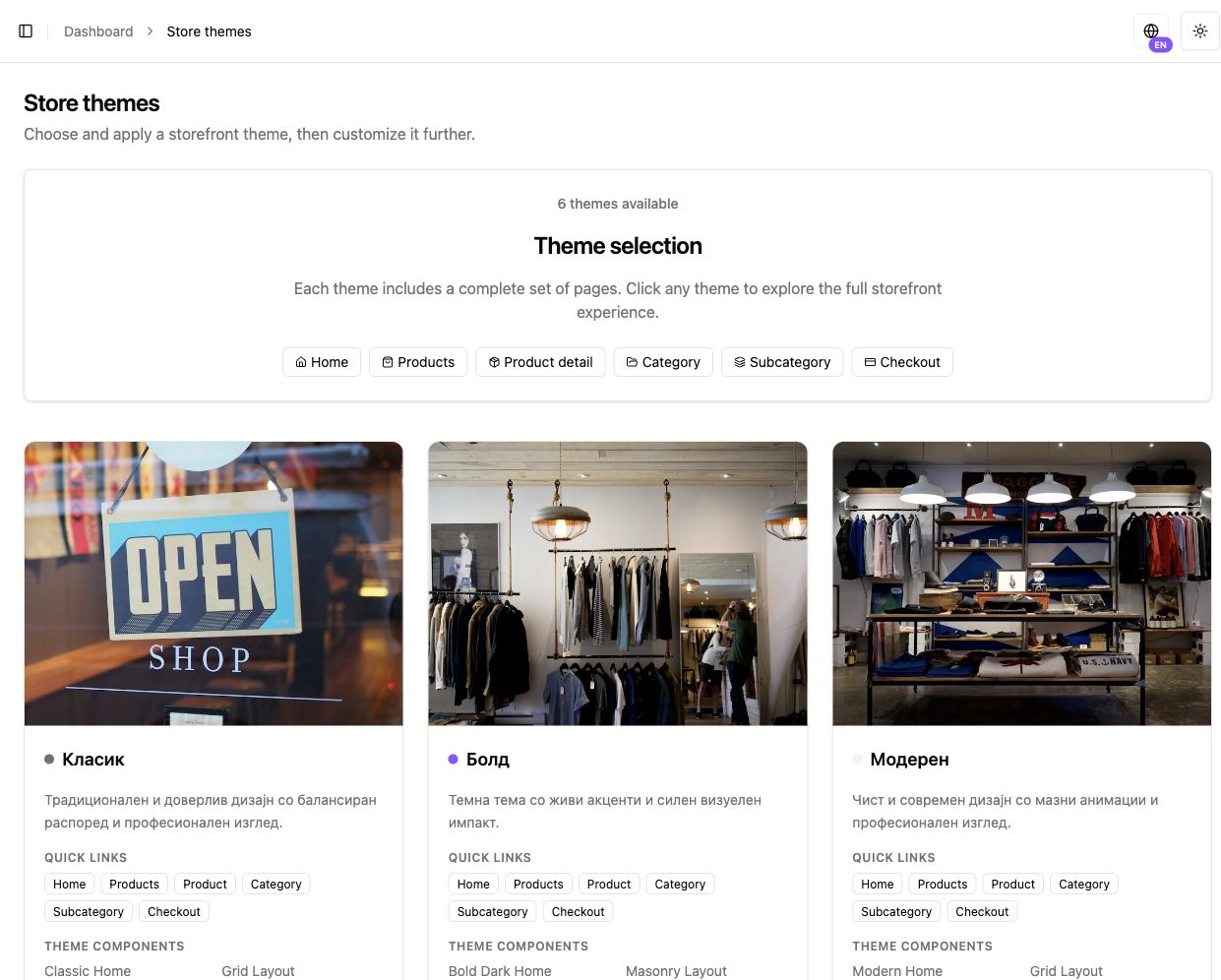
Section titled “Appearance and store settings”Use Appearance for themes, logo, colors, typography and page content. Use Settings → Domains for domain verification. Business delivery methods are under Settings → Shipping; UJP is limited to applicable North Macedonian Business workflows.
Store setup · Themes · Business shipping
Settings → API Keys and Billing
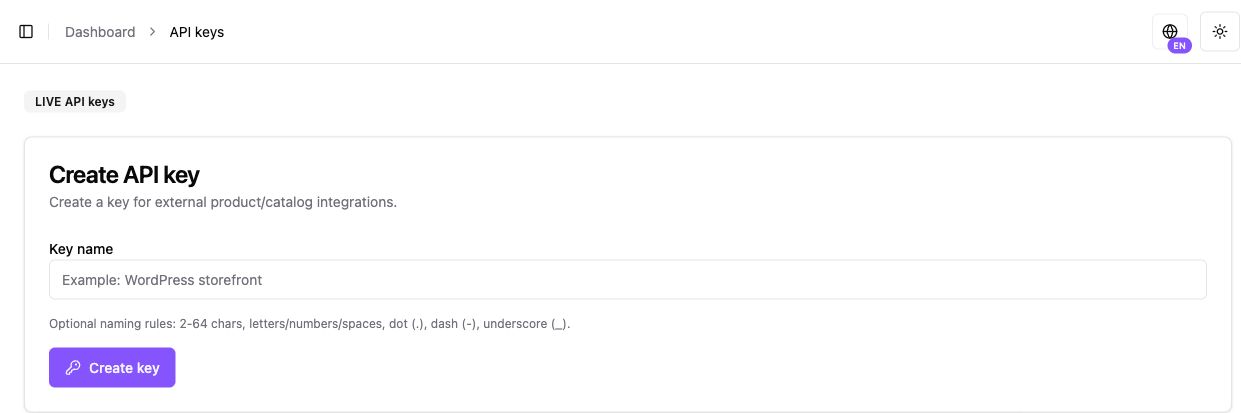
Section titled “Settings → API Keys and Billing”API Keys manages store credentials for supported server integrations. Keep keys private. Billing manages the Kordiva plan; it is separate from buyer payments and Individual money availability.
API authentication · Business plans · Individual plans
If a tool is missing
Section titled “If a tool is missing”Check the selected store, seller model, role and plan. Some settings require owner or administrator access. Contact support about an unexpected restriction instead of switching country or model to bypass it.